前言
因為手上有台機器的windows拿到了權限可以安裝WSL來用…就來加裝ManjaroWSL
Pre-Start
首先要先把WSL/WSL2弄好
- 用管理者權限打開
powershell並執行下列指令來開啟Windows Subsystem for Linux
1 | dism.exe /online /enable-feature /featurename:Microsoft-Windows-Subsystem-Linux /all /norestart |
- 用管理者權限打開
powershell並執行下列指令來開啟Virtual Machine
1 | dism.exe /online /enable-feature /featurename:VirtualMachinePlatform /all /norestart |
Download WSL-Kernel and Install
Set Default to WSL2
1 | wsl --set-default-version 2 |
Install & Initialize ManjaroWSL
Download
ManjaroWSL很佛心已經包好了直接到這裡下載最新的zip檔
放置&安裝
把下載好的zip檔放在你預設要作為ManjaroWSL整個系統的地方並解壓後
打開powershell
1 | ./Manjaro.exe |
就會自動進行解壓然後再執行一次
1 | ./Manjaro.exe |
Initialize
首先依照提示進行是否要resize及建立new user
這裡就都選No理由如下
不會用到250GB以上 尤其是它都會mount windows的槽到/mnt/
User的部份後面的script會建立,為了好看的zsh console以及Xfce還是後面建會比較好
Configure System
Run Script as root
1 | bash <(curl -L -s https://kiwi0093.github.io/script/WSL/manjaro.sh) |
Script使用注意
一開始的時候自己輸入國家會比讓它跳最快的快
中間需要編輯
/etc/wsl.conf的時候(就是會忽然跑出一個`vi``的界面)
1 | [Users] |
好了之後:wq存檔跳出
Script說明
詳細的script內容我就不貼了
Mirrorlist & System Upgrade
1 | # Basic system configuration |
簡單的說就是弄個選項來跑pacman-mirrors & pacman -Syyu
Basic Tools Install
1 | echo -e "${color1}Install Basic tools${NC}" |
在這個區塊裝上zsh及其相關的美化工具, git yay rsync wireguard及其相關工具
Xfce4及Manjaro theme
1 | echo -e "${color1}Install Xfce4 for GUI${NC}" |
這段就是抄Manjaro官方文件的
GUI Tools & 中文
1 | echo -e "${color1}Install GUI$ tools${NC}" |
一樣沒裝什麼
其他的部份就是一些設定檔的匯入與帳號建立沒什麼好看的比較值得看的是
Systemd on WSL
1 | echo -e "${color1}Change your root password & shell to zsh${NC}" |
經過實驗,大概能簡單又正常跑起來的就只有genie-systemd-git了他的原理我也不是很懂
反正就是裝好之後記得用
genie -i來初始化然後可以用genie -c 來執行指令或是開新的shell也可以
### 建立desktop shortcut
使用[GWSL](GWSL | gwsl),先進行設定
GWSL Distro Tools–> Display/Audio auto exporting 開啟
GWSL Distro Tools --> LibGL Indirect開啟
然後
Shortcut Creator
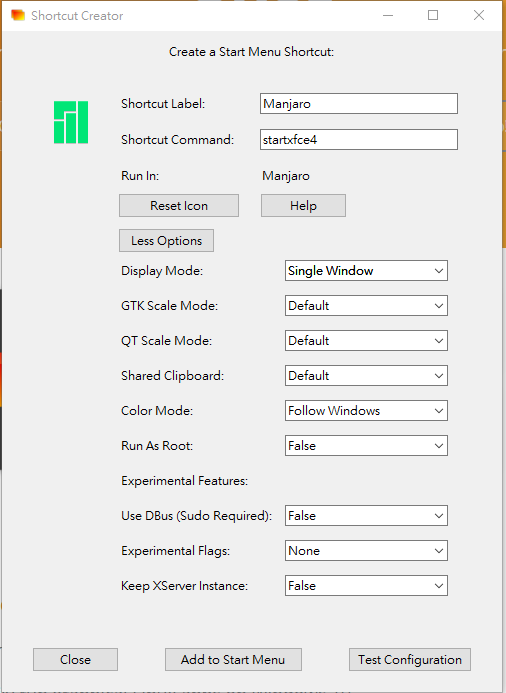
Shortcut Label - 這個是你的Windows start Menu會出現的名字隨你定義
shortcut Command - 因為是Xfce4所以固定是
startxfce4Display Mode - 要想整個desktop顯示只能選
single Window或是FullscreenKeep Xserver Instance - Display Mode若是選
Fullscreen的時候這個要選true不然會閃退
好了之後可以先Test Configuration測試一下是不是自己要的,若沒問題就`Add to Start Menu``
結語
老實說一看到 WSL的時候很讓人開心,發現有Manjaro的時候超開心的然後真的裝上後
就沒那麼開心了,理由如下
速度沒有想像的快,尤其是開在desktop內跑的
所有multiscreen跑的程式都不能切換輸入法(或是可以試試預設改用chewing然後只用shift切換?)
Desktop模式放置一段時間就會死掉…連同在裡面跑的都一起…
systemd雖然勉強可以跑但是感覺還是差一大截
所以說若是只需要一個linux shell拿來跑點東西或是有什麼原因非得同時跑Windows+Linux的時候是個好選擇(應該會越來越好用)但是若要跟真的Linux Desktop一比較就蠻渣的
甚至比不上VNC另外一台Linux Desktop的效能…
不過就是有特殊用途才用呀~~~~